
Invite Participants
As an instructor, you can invite guest speakers or other external participants to your Kaltura Room by sending them a secure access link. This link gives invitees direct entry to your specific session without requiring them to log in through the site’s usual authentication process. When they use the link, they’ll be admitted according to the site’s standard login and access rules, making it simple for guests to join your class session.
Send an invitation link
- Go to the media page for your Kaltura Room.
- Click the three-dot menu below the screen and select Invite users.
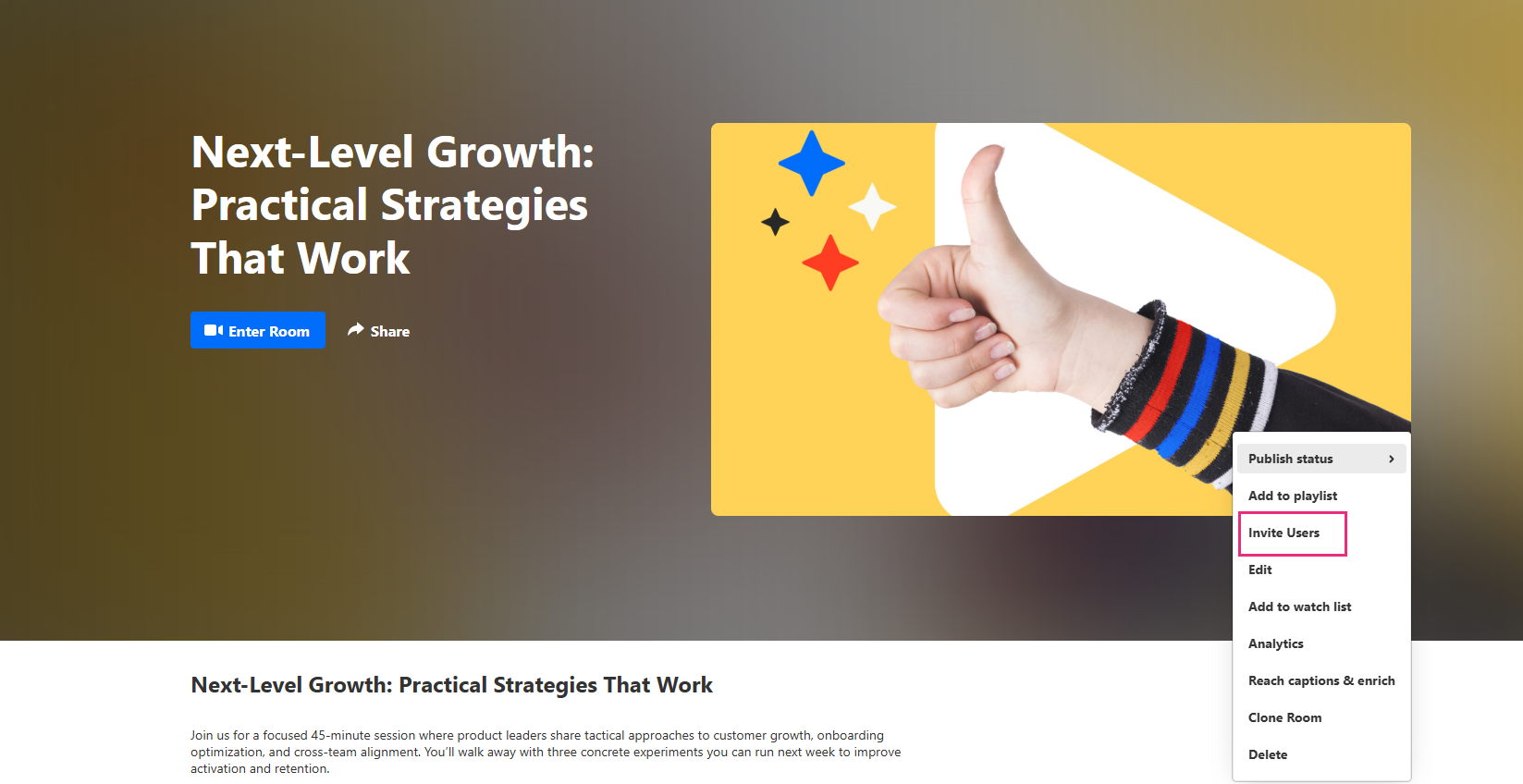
The ‘Invite users’ window opens.
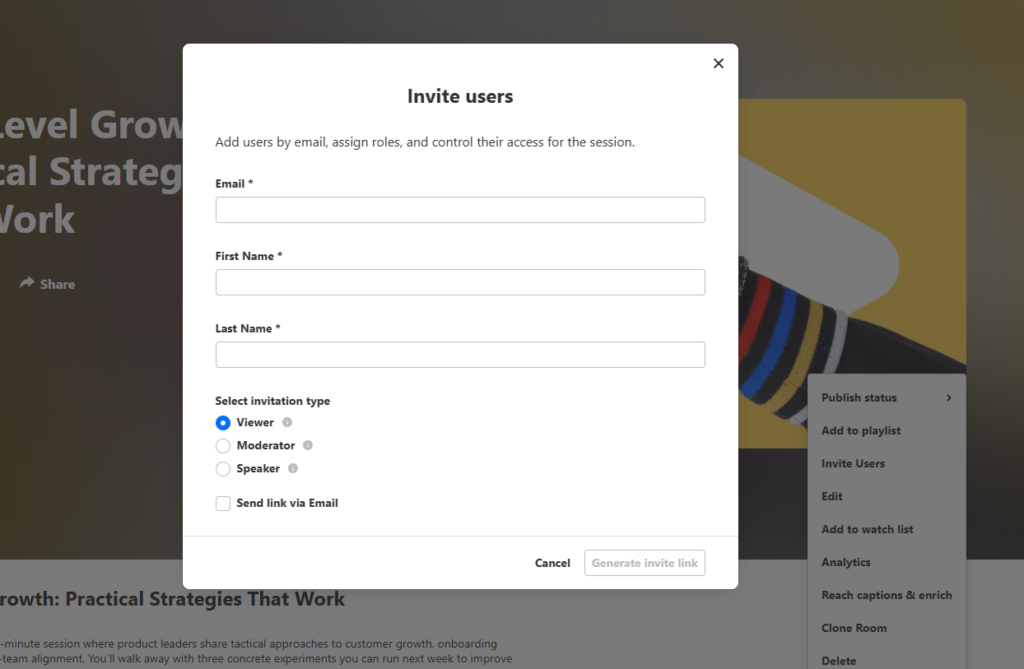
- In the ‘Invite users’ window, complete the following:
- Email address – (Required) Enter the invitee’s email. If there’s a match with an existing user, they’ll appear in the drop-down menu.
- First and last name – (Required) Enter their name.
- Select an invitation type - Choose a role for your invitee from the options:
- Viewer – Access to chat, answer interactions, and Q&A.
- Moderator – Access to backchannel, initiate interactions, and Q&A.
- Speaker – Access to backchannel, interactions, and Q&A.
- Send link via email - Check this box if you want the system to email the invite to the user.
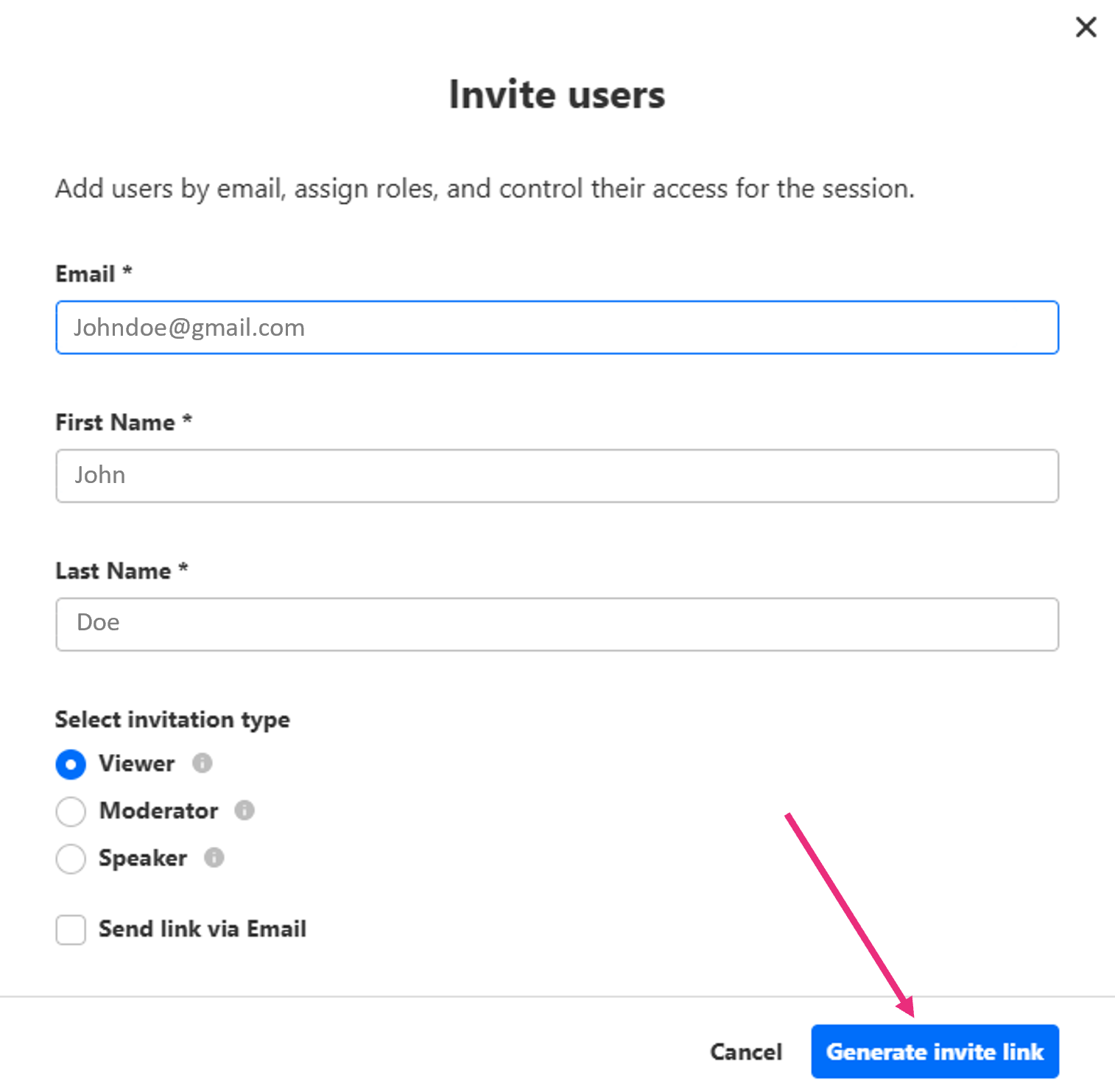
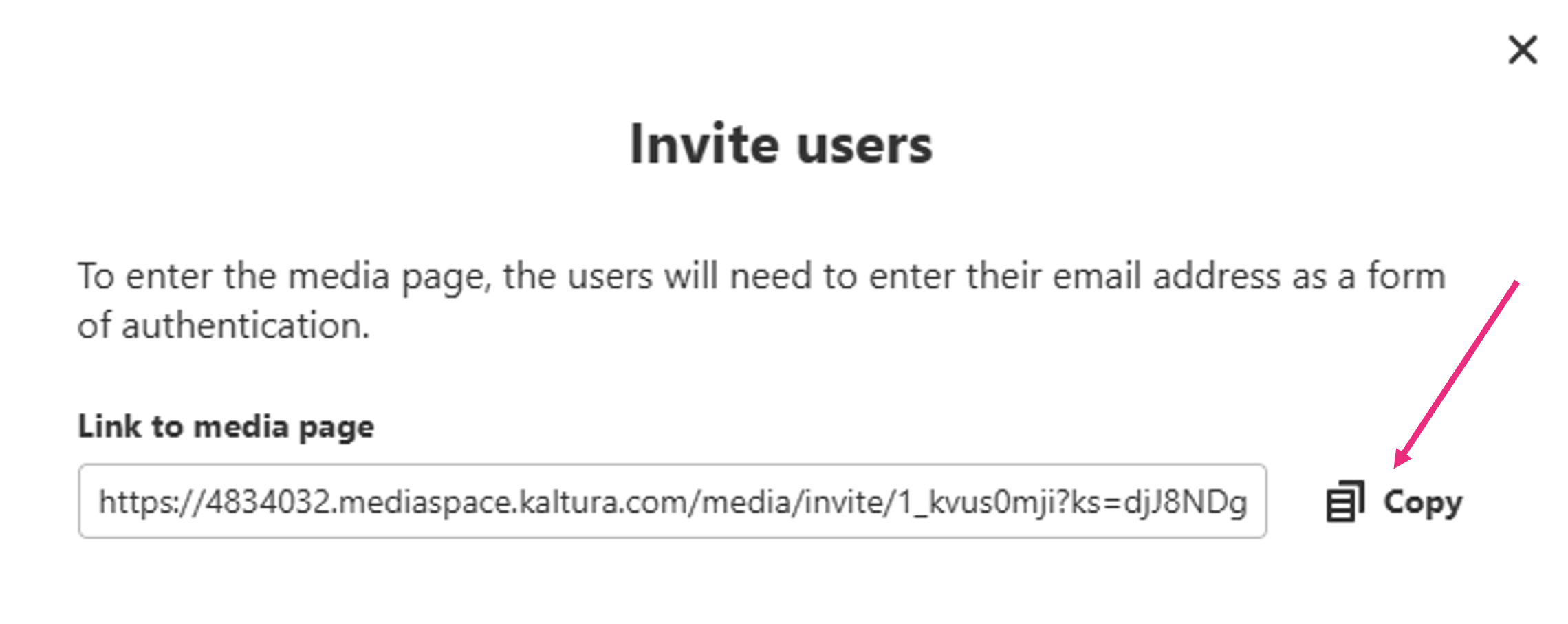
- Copy the generated link from the confirmation window.
- Share the link with the invitee using your preferred method.
What the invitee sees
When an invitee clicks the link, what happens depends on whether the session has started and how they’re logged in.
- If the session hasn’t started – The invitee will access the room page with event details and a countdown until the start time.
- When the session is open – If the invitee is logged in with the invited email, they’ll go directly into the room. If they’re not logged in, they’ll first see a lobby screen where they must enter the invited email.
Troubleshooting
- Email doesn’t match – Make sure the invitee is logged in with, or enters, the email address that received the invitation.
- Link expired or already used – Generate a new link and share it with the invitee.
- Room deleted or invite removed – The invite will no longer work.
- Domain restrictions – If the invitee’s email domain is blocked, try a different email address or contact the admin.
- Role didn’t update – If you promoted an invitee but they don’t see their new permissions, ask them to refresh the room
For more detailed information visit the Send an invitation link to your Kaltura Room webpage on the Kaltura Knowledge Center site or view this PDF.