
Embed a Room in Brightspace
You can embed your Kaltura Room directly into course content, giving students a seamless way to join your live session from within Brightspace. For example, you can place an Office Hours Room in a Welcome or Course Information module or include it in an announcement so students always know where to go. The same room can also be reused across multiple courses or entry points, such as My Media, the Media Gallery, or a content page, so all students access the same session no matter where they join from.
Access the embed tool
- Go to any content area where a rich-text editor is available (for example, Announcements).
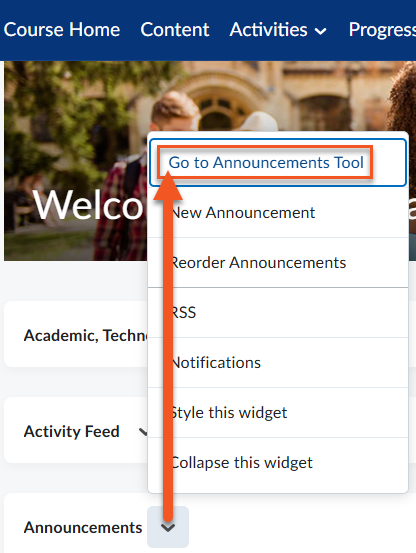
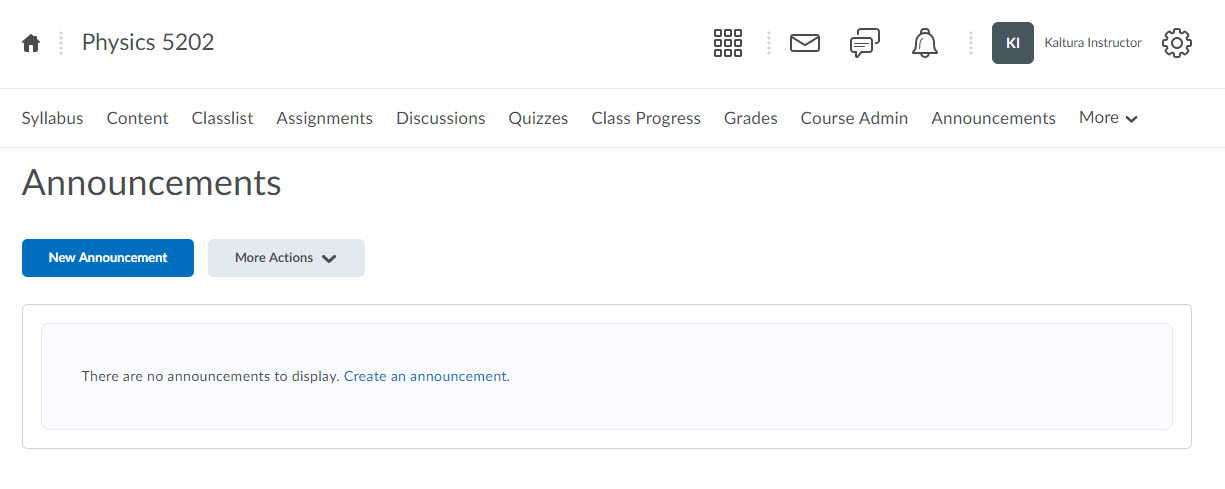
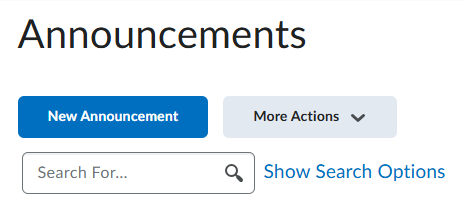
The page associated with that menu item displays. Click the button to add New Announcement.
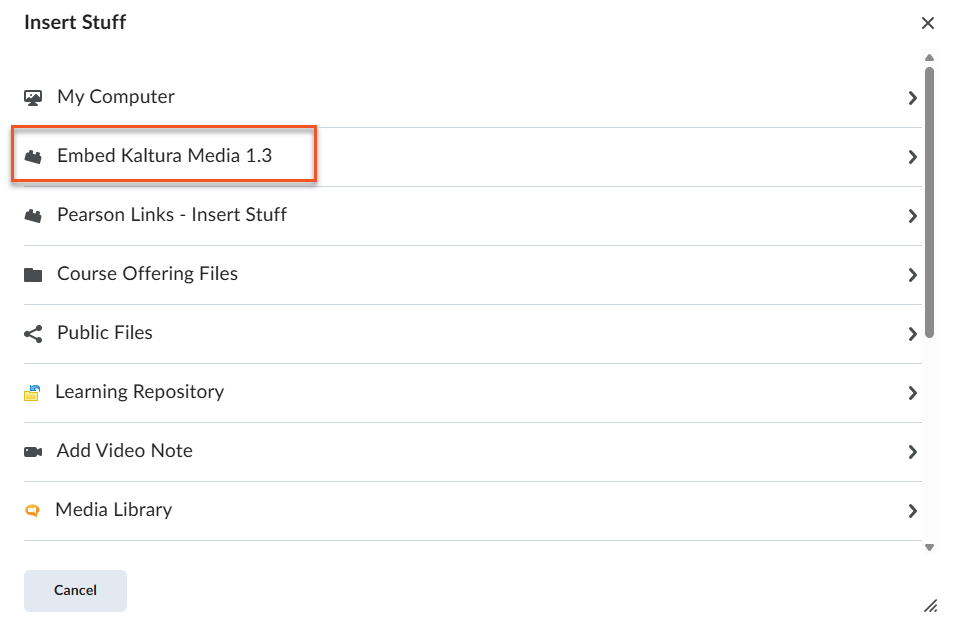
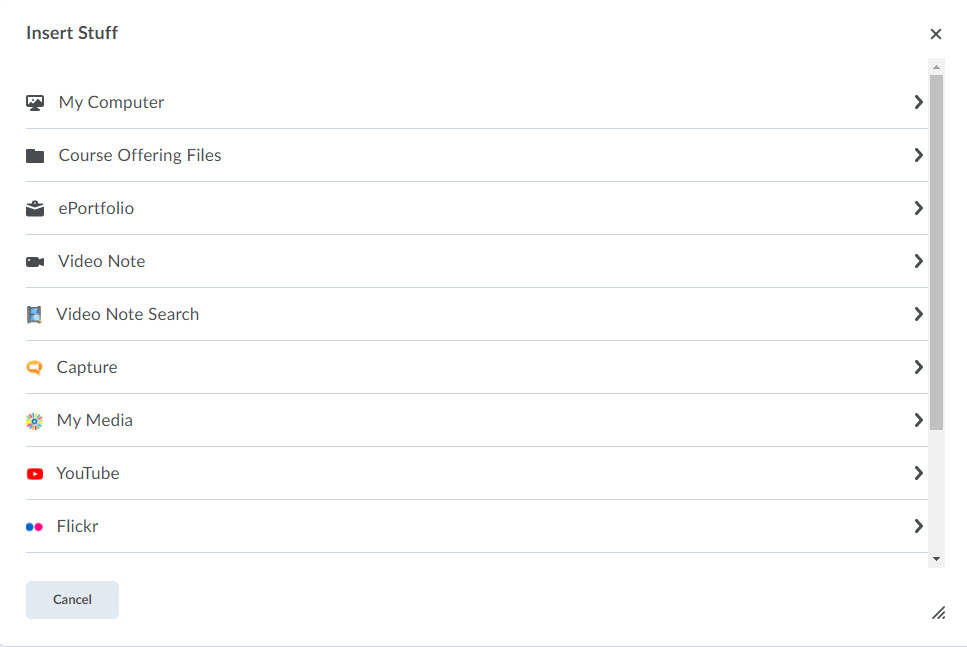
- The rich-text editor displays. Click Insert Stuff.
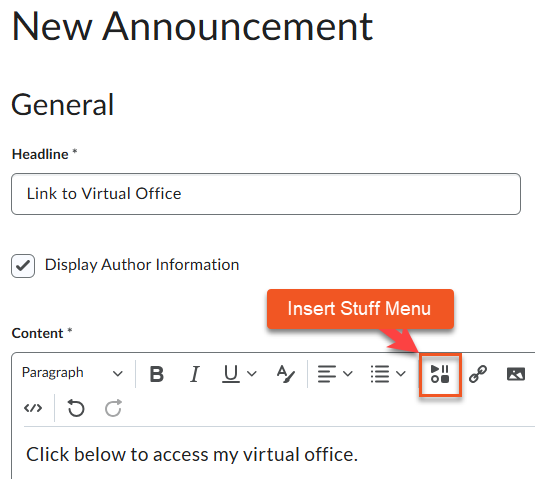
The Insert Stuff window opens. Click Embed Kaltura Media 1.3.
Embed a room
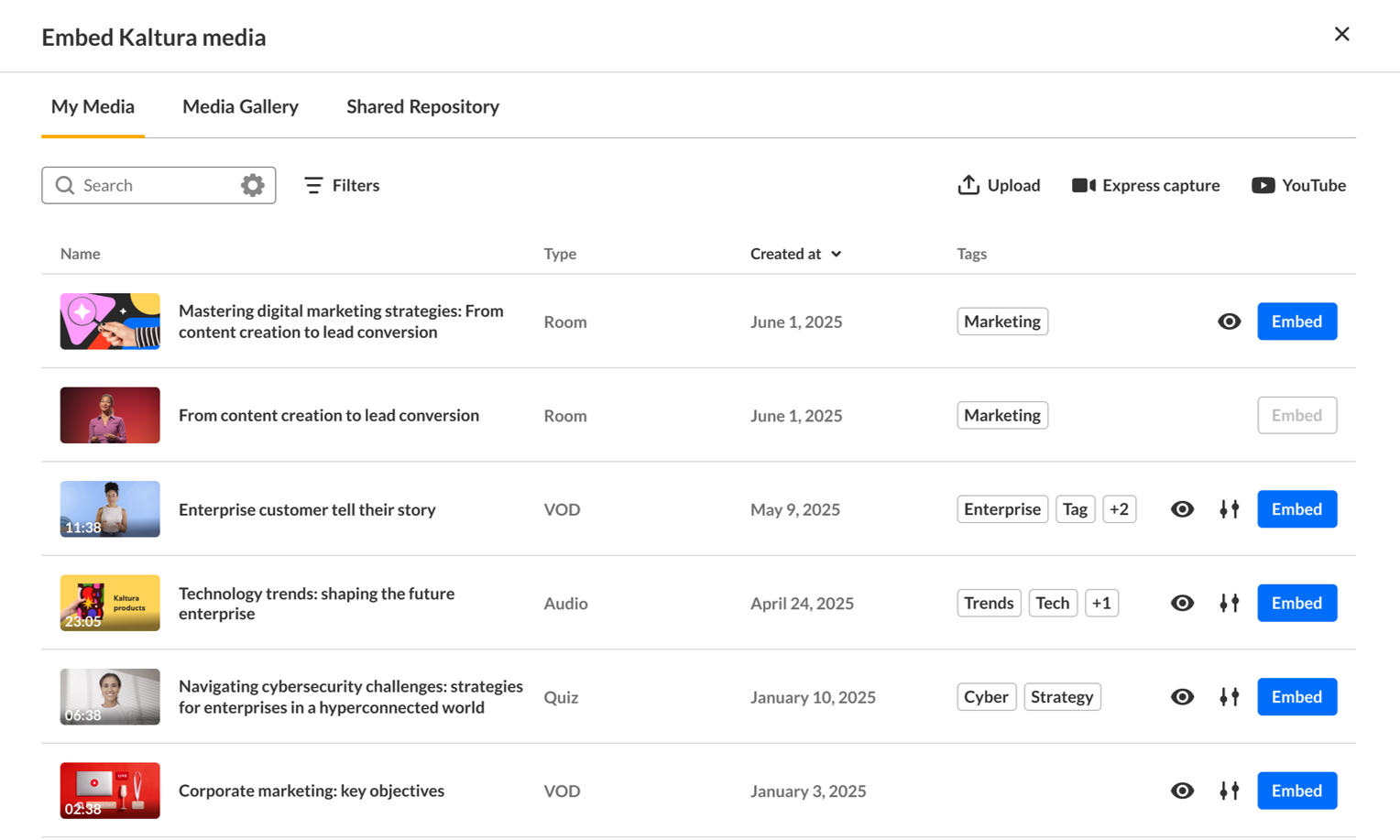
In the embed window, use the search and filters to locate Kaltura Rooms. Click Embed on a room entry to insert the room ‘card’ into your content.
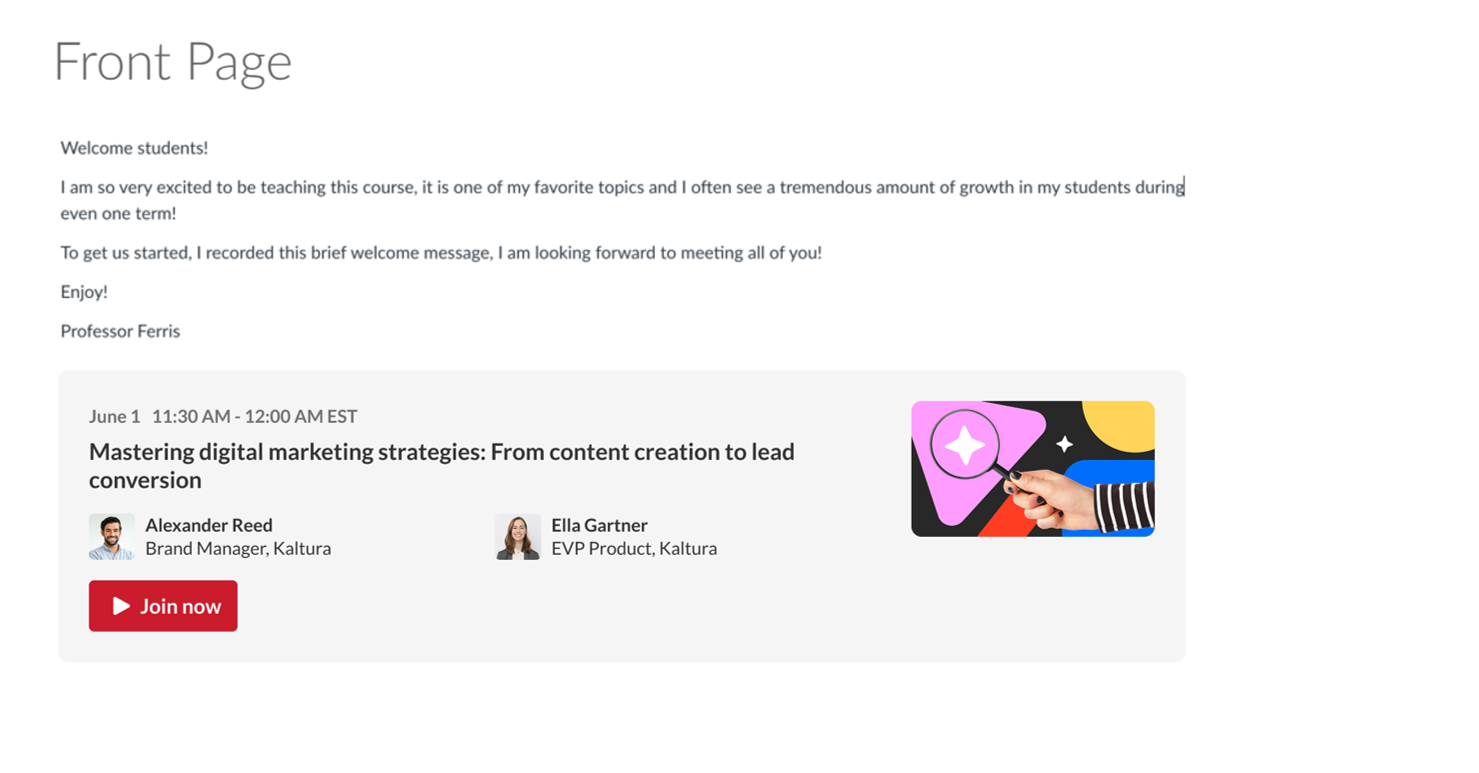
Once you have embedded the room, the card shows the session title, description, thumbnail, and a ‘Join now’ button.
Room card details
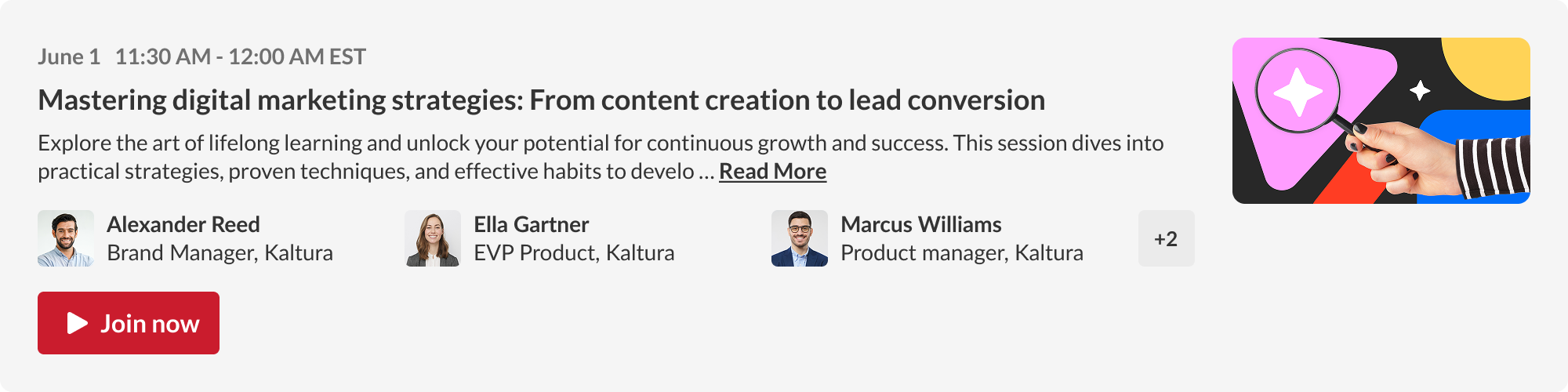
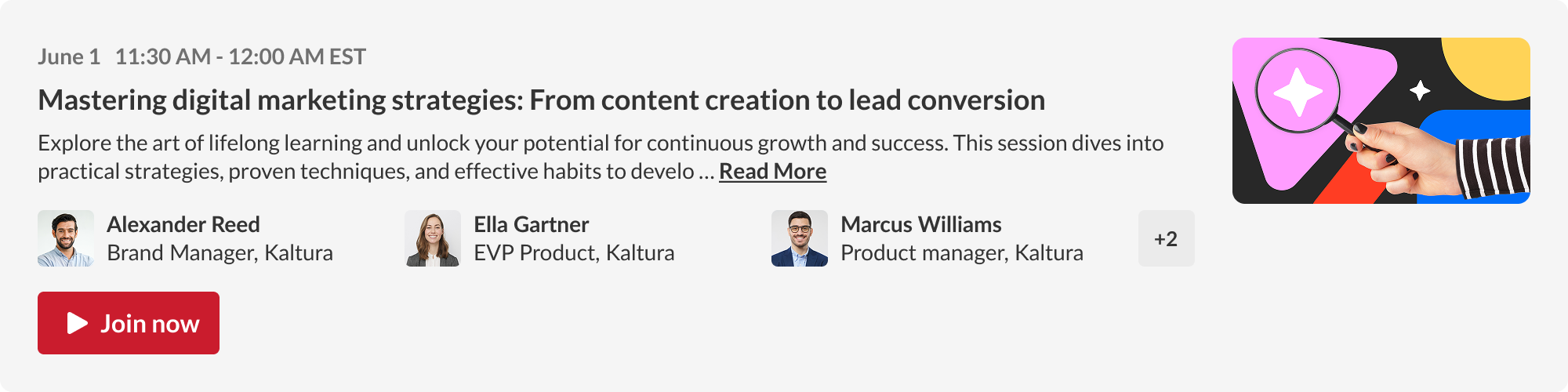
The embedded card displays key session information in a compact, visual layout. It includes:
- Date and time of the session (if scheduled)
- Session title
- Short session description, with a ‘Read more’ link that opens the entire text
- ‘Join now’ button — always visible for teachers and co-editors; for students, it’s shown based on session timing
- Speaker information (if enabled) — up to three speakers shown with a plus (+) indicator if there are more
- Thumbnail image on the right (if enabled)
The card adjusts its appearance depending on the session status (‘Live’ or ‘Out of Schedule’).
For more detailed information visit the Embed Kaltura Rooms in Brightspace webpage on the Kaltura Knowledge Center site or view this PDF.