Email and Instant Messages
In addition to Announcements, the Welcome Widget, and the Activity Feed, Brightspace offers two primary communication methods, email and instant messaging, and it is important to understand how each functions at NIC.
At NIC, Brightspace email is send-only. Any message sent through Brightspace is delivered to the recipient’s NIC email account and accessed through Outlook. Brightspace does not have an internal inbox for reading or managing messages, and users cannot reply to or forward messages from within Brightspace itself.
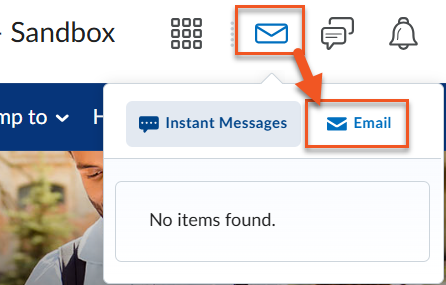
- Both instructors and students can send email (or instant messages) using the Email icon (or Instant Messages icon) in the minibar at the top of every Brightspace page or from the Classlist within each course. You can email or message the entire class or specific students by checking the boxes next to students’ names.
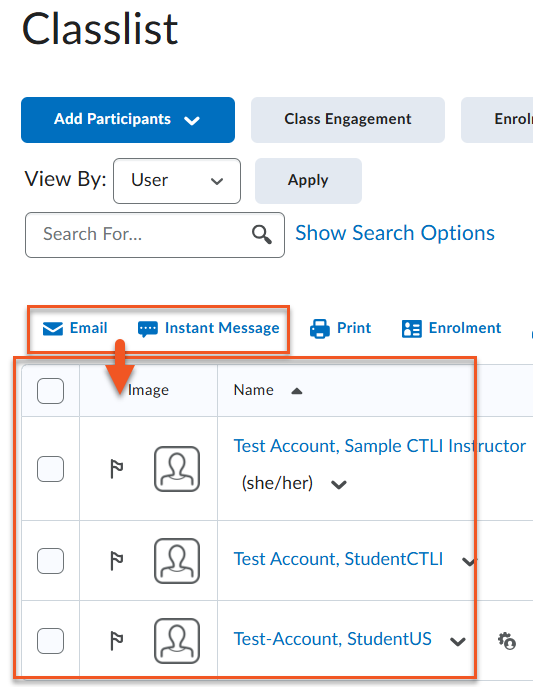
- If you’re emailing from the Classlist, email addresses for selected students will appear in the blind copy (bcc) field.
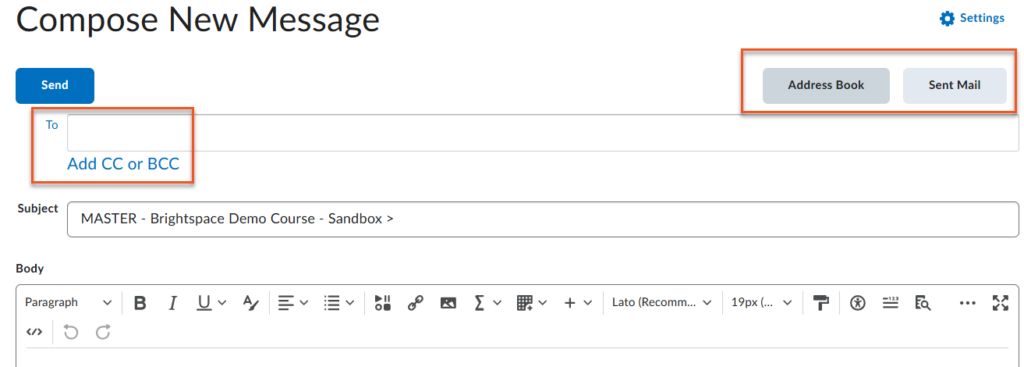
If you click on the email icon in the Minibar, it opens the Compose New Message window where you have access to the classlist (Address Book) and your Sent Mail.