Grade a Quiz
Most of your quiz questions will be auto-graded, but it’s in the Quizzes tool where you will manually grade long answer questions, overwrite quiz scores and monitor learner statistics.
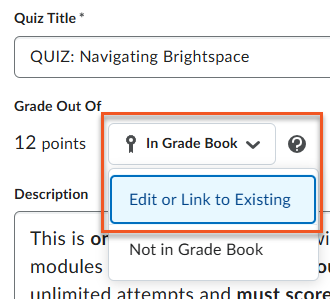
See Create a Discussion Forum and Topic on the Create and Edit a Quiz page to learn more.
Use one of the two methods below to grade quizzes.
The Quizzes tool allows instructors to manually grade quiz questions, provide detailed feedback, and automatically publish scores to the grade book.
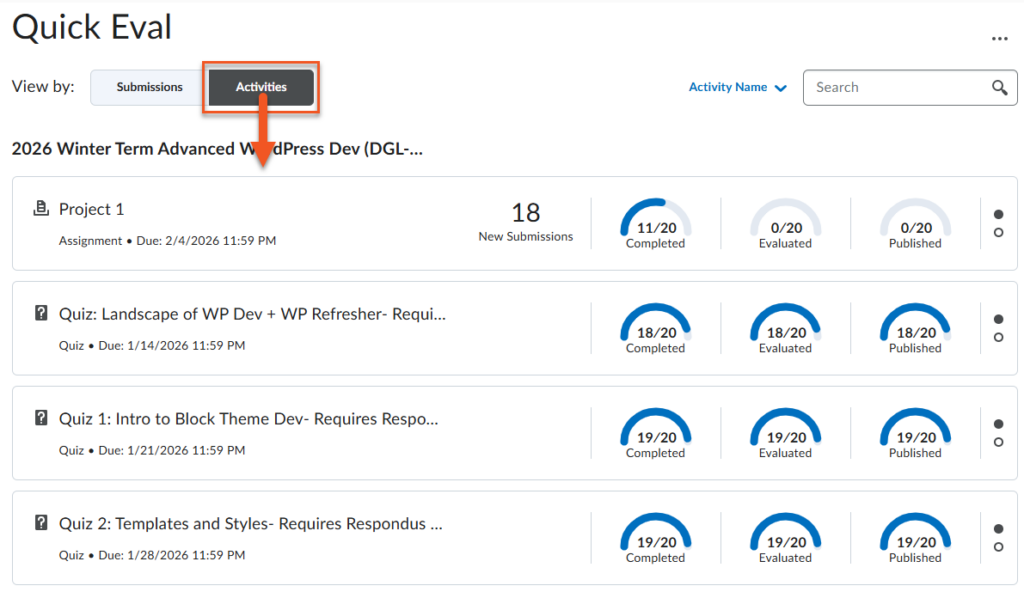
Brightspace includes two Quick Eval views: a course-level Quick Eval tool that displays all assessment submissions within a single course, and a Brightspace-wide Quick Eval view that aggregates submissions from all courses, allowing instructors to efficiently manage and prioritize grading across their full teaching load.
View of course-level Quick Eval. To grade the quiz, simply click on the student’s name and continue to grade as shown in the accordion above.