
Create a Discussion
The following terms are important in understanding how discussions in Brightspace are organized.
Creating Discussion Forum
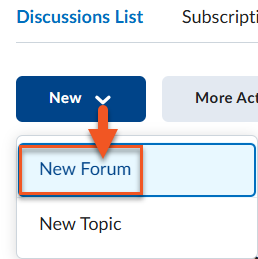
- Navigate to Activities > Discussions.
- Click New Forum.
- Enter a title and check the box to create a topic with the same title if you would like a topic created. Include a description if desired.
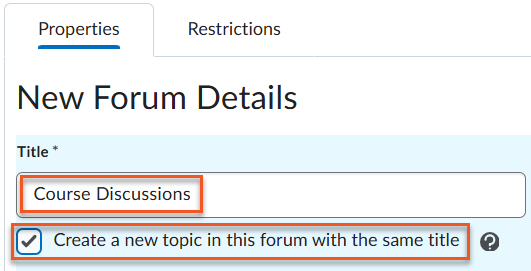
- Select options from the list:
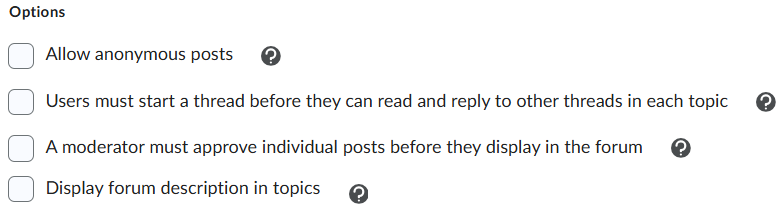
- Allow students to submit posts anonymously in all discussion topics linked to this forum.
- Require students to create their own thread in a discussion topic before they can view or respond to threads started by others. If this setting is enabled at the forum level, it will automatically apply to all discussion topics assigned to that forum.
- Require instructor approval for each post in the discussion topics associated with this forum before it becomes visible to other students.
- Display forum description in topics. Selecting this option will display the forum’s description in addition to the topic description when viewing a topic.
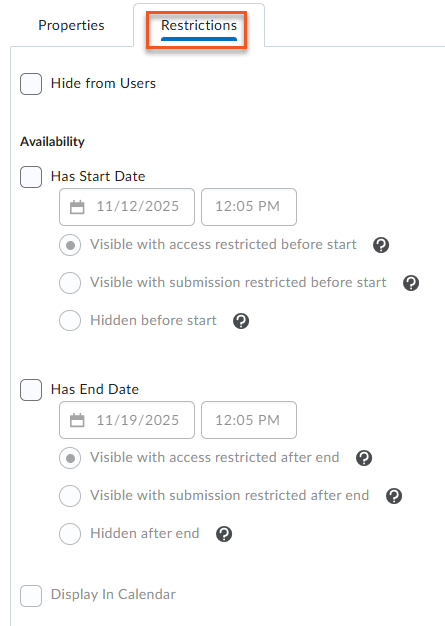
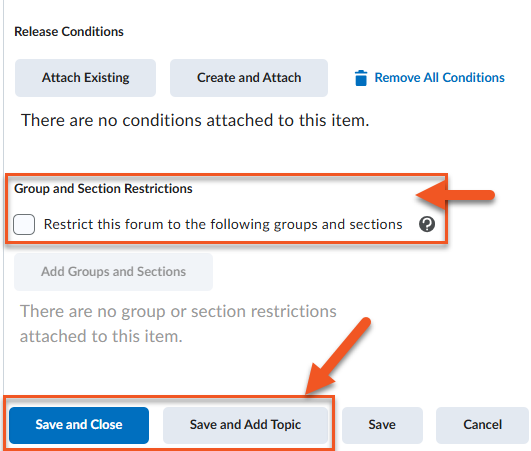
- Click on the Restrictions tab to restrict the forum’s availability dates, release conditions or group and section access.
- Click Save and Close or Save and Add Topic to add another topic.
Adding Discussion Topic
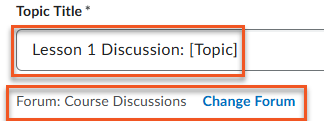
- When you add a topic, first title it and ensure it is in the correct Forum.
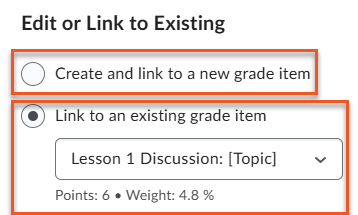
- To make this a graded discussion topic click on Grade Out Of and enter the number of points. Click the In Grade book drop-down menu and choose to create a new grade item or link to an existing grade item.
NOTE: If you’ve already built out your gradebook with grade items, do not create and link to a new grade item or you will end up with duplicate grade items in your gradebook.
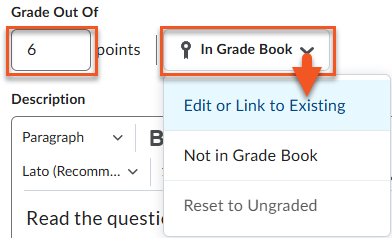
- If this is an ungraded discussion or isn’t in the gradebook select to either Reset to Ungraded or Not in Grade Book.
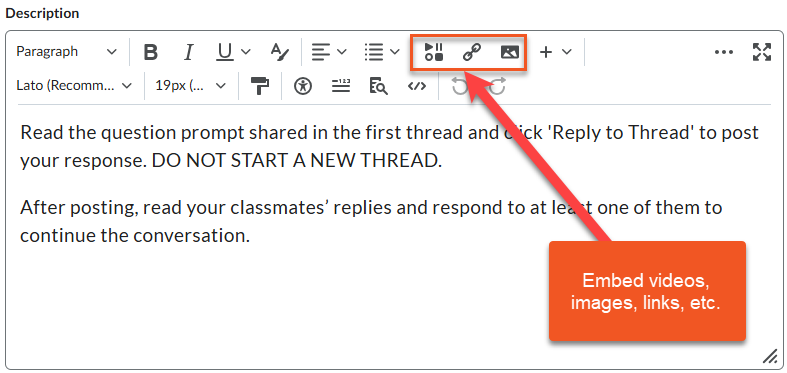
- Enter a description. This is where you will include topic details and posting instructions. You can also add videos, images, links and documents.
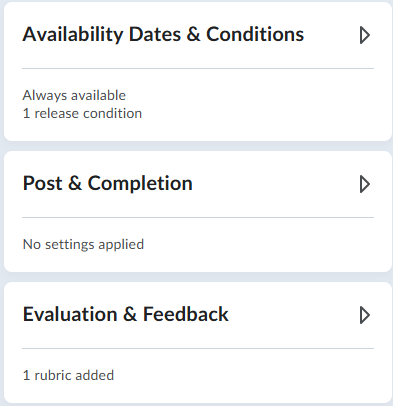
- Add Dates & Conditions, enter Posts & Completion parameters, and select Evaluation & Feedback settings. See Setting Discussion Topic Parameters for more details.
To set up a group discussion, begin by creating your groups using the Groups tool. You can refer to the Groups page for instructions on how to create a Group Category. Once your groups are ready, you can restrict a discussion so that only members of a specific group can participate.
When setting up group discussions, decide whether you want a single shared discussion topic that all groups post to, or individual topics for each group. From a student’s point of view, both options appear the same since learners only see the discussion area for their own group.
Restricted Topic
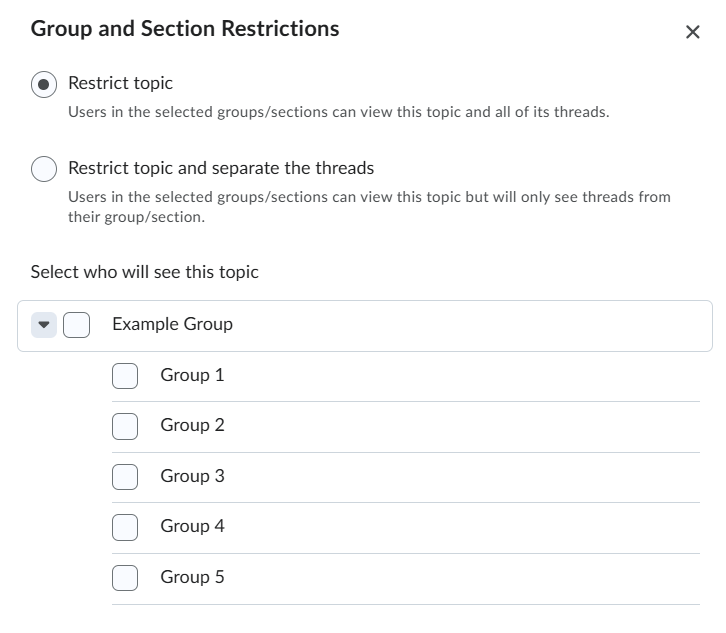
Restrict a discussion topic so that only groups or sections selected will be able to see and post to it.
- You want to give groups different dates that they will be able to access and contribute to the discussion.
- Groups are discussing a different topic and you want to keep these discussions separated in your view as the instructor.
Restricted Topic that Separates Threads
You can restrict a discussion topic and separate threads which allows only students within the same group to see and respond to students within the same group or section (This setting is used when you provide all students with the same discussion topic but want to restrict the number of threads students see).
- All groups will have access to the discussion at the same time.
- All groups are discussing the same subject, problem, or question.
- You want to connect the group discussion to a grade item in the gradebook.
Overview Group Discussions
To set up a private 1:1 discussion, you must first Create a Single User group that is member-specific. The remaining steps are the same as setting up any other group discussion, you are simply restricting it to Single User, member specific groups.
Overview Private Journaling Discussions
Setting Discussion Topic Parameters
The discussion topic edit window includes 3 widgets on the right side that can be collapsed and expanded; each widget contains settings that can be adjusted in order to tailor a discussion topic to your needs. See the information in the tabs below to learn more about the settings found in each widget.
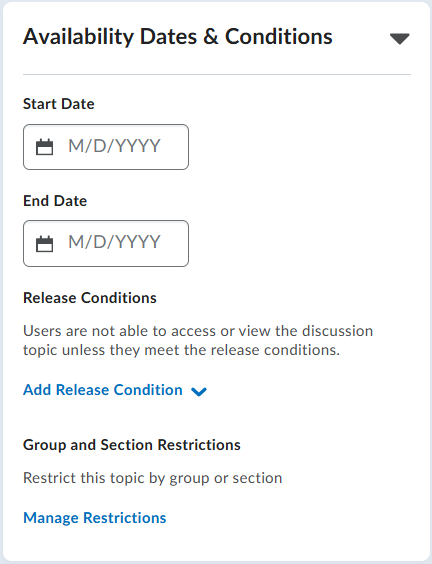
Start and End Dates: Automate when students can access a discussion. If you set a Start Date and time, students won’t be able to access the discussion until that date and time. If no Start Date is set, the discussion is available as soon as it’s created and made visible.
Release Conditions: Control when students can access a discussion based on specific criteria. For example, you could make a discussion available only after a student has viewed a particular module, completed a quiz, or achieved a minimum score.
Group and Section Restrictions:
- Restrict Topic: Only groups or sections selected can see and post to it.
- Restrict topic and separate threads: Only students within the same group see and respond to students within the same group or section. Used to provide all students with the same discussion topic but restrict the number of threads students see.
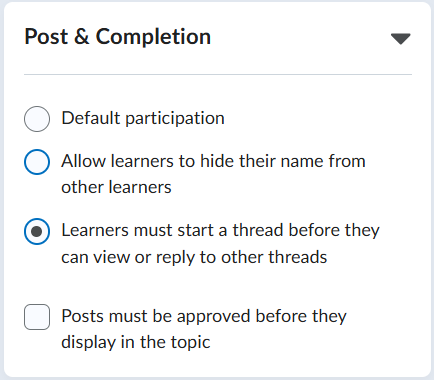
Posts & Completion options let you control how students participate in a discussion. You can:
- Allow learners to post to the discussion topic anonymously.
- Require students to start a thread before they can view or reply to other threads in the discussion topic.
- Require that posts be approved by an instructor before other students can view and reply to them.
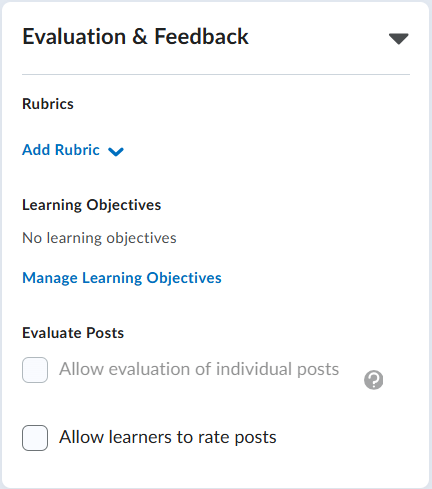
Under Evaluation & Feedback you have the opportunity to:
- Add an existing or create a new rubric. See the page on rubrics to learn more.
- Manage Learning Objectives
- Allow evaluation of individual posts
- Allow learners to rate posts
Overview Discussion Tool
Create a new video that combines the two videos below.
Learn More
- Moderate or Manage Visibility Restrictions for Discussions
- Create and Attach a Rubric
- Grade a Discussion