Grade an Assignment
In Brightspace, instructors can grade assignments using tools such as inline annotation, rubrics, written and audio feedback, with scores automatically transferred to the grade book, streamlining grading while supporting meaningful student feedback.
See Create a Basic Assignment on the Create an Assignment page to learn more.
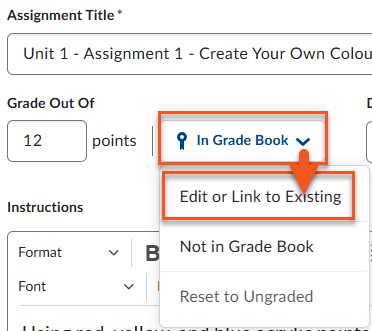
There are three places where you can grade an assignment:
The Assignments tool allows instructors to efficiently grade submissions, provide detailed feedback, and automatically publish scores to the grade book, and is best used when a file submission is required and you are working directly within a course, or when you are teaching only one or two courses and do not need the broader workflow offered by the Quick Eval tool.
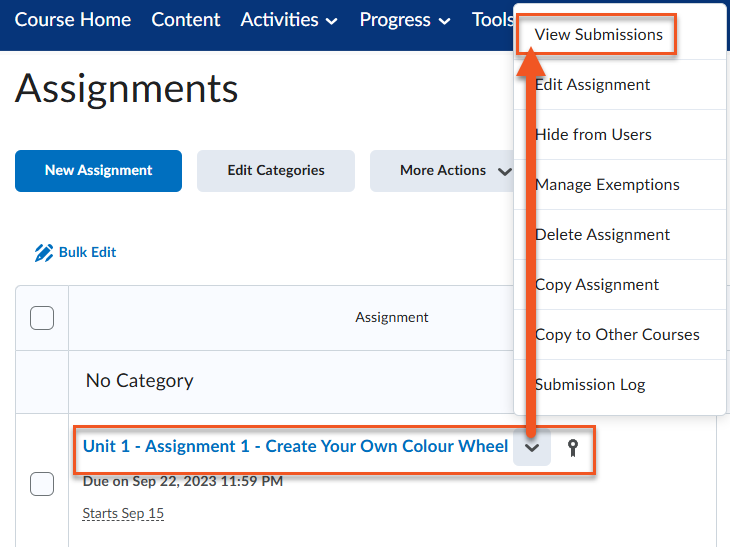
- Navigate to the Assignment you want to grade, click the drop-down menu and select View Submissions.
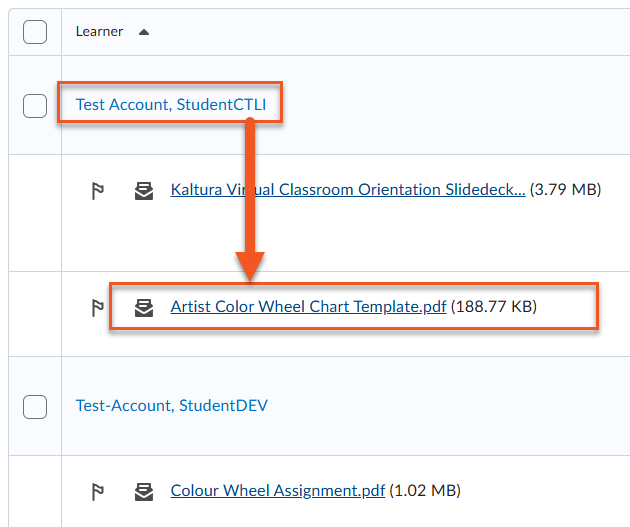
- Click on the link to the student’s submission that you want to grade.
- Grade the submission and either Save Draft or Publish. *NOTE: If you choose Save Draft, you can publish all grades and feedback later, allowing all students to receive their results at the same time.
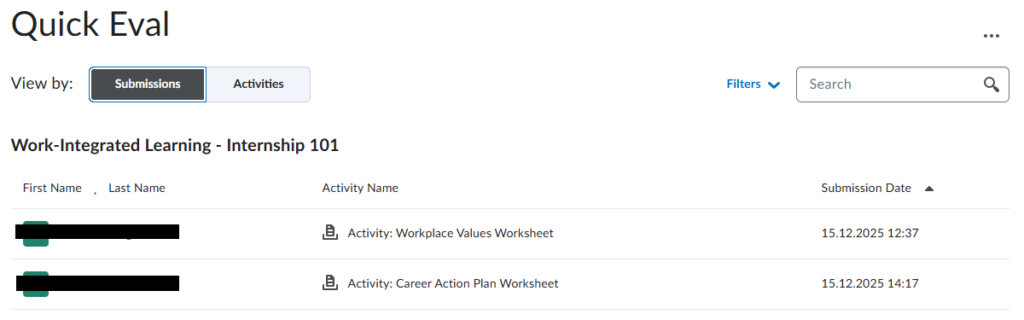
Brightspace includes two Quick Eval views: a course-level Quick Eval tool that displays all assessment submissions within a single course, and a Brightspace-wide Quick Eval view that aggregates submissions from all courses, allowing instructors to efficiently manage and prioritize grading across their full teaching load.
View of course-level Quick Eval. To grade the submission, simply click on the student’s name and continue to grade as shown in the accordion above.
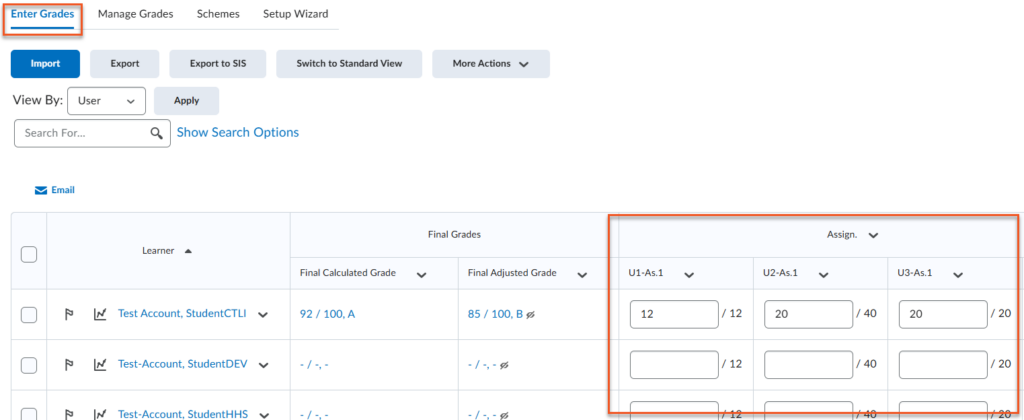
The Enter Grades page is best used when you need to manually input or adjust scores without reviewing a submission, such as for participation marks, in-class activities, offline assessments, or grade corrections.
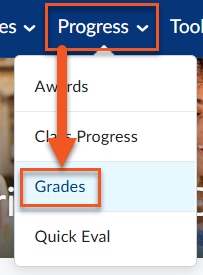
- Navigate to Progress > Grades > Enter Grades
- Switch from Standard View to Spreadsheet View.
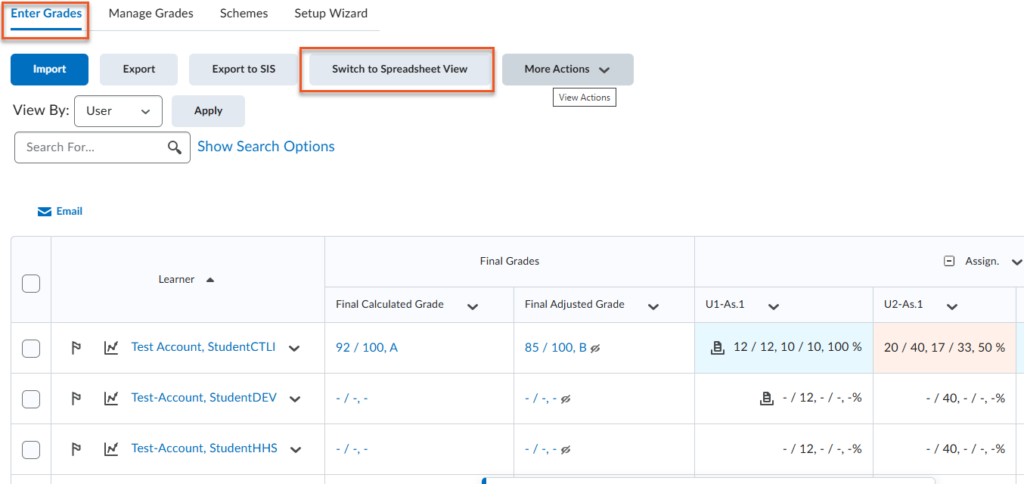
- Click on the correct cell and enter the student’s grade. Click Save.