Manage Dates
The Manage Dates tool in Brightspace provides a centralized view of all date-based activities in a course, including Assignments, Quizzes, Discussions, and Content availability.
It allows instructors to quickly review, edit, and bulk adjust start dates, due dates, and end dates without navigating into each individual activity.
This tool is especially helpful when copying courses from a previous term, as it streamlines the process of aligning all assessment and content dates with the new semester schedule.
You can manage course dates in two ways.
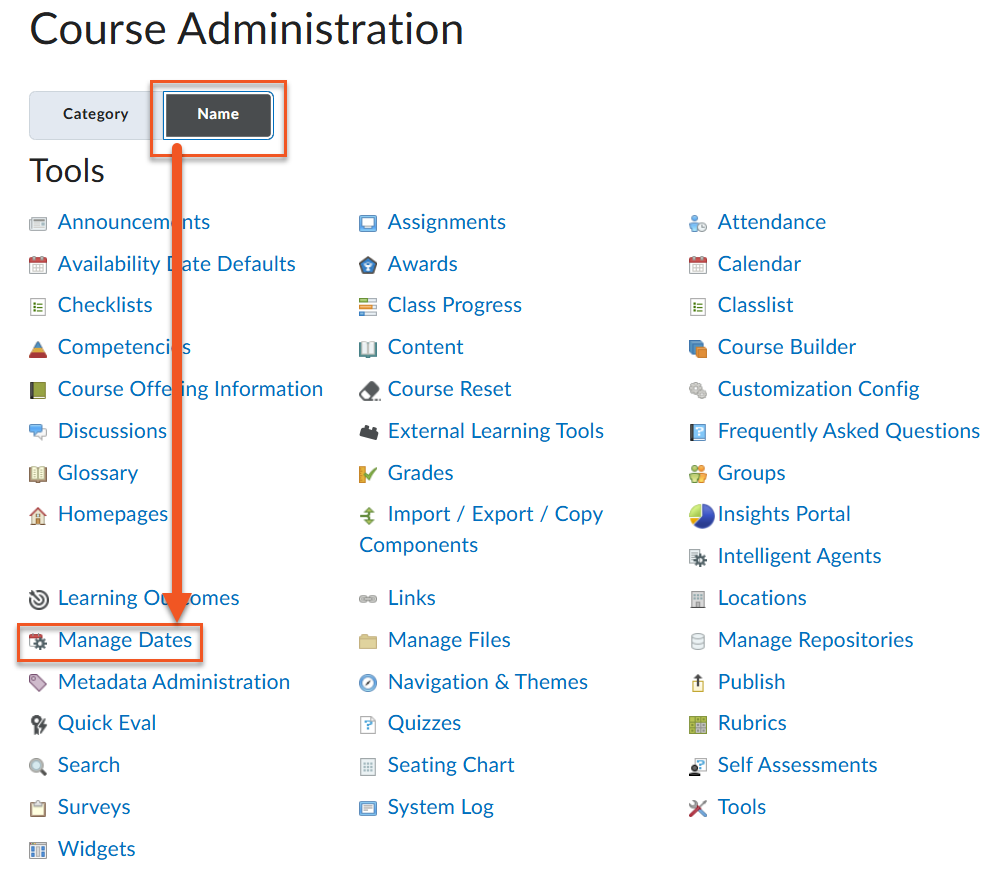
To access the tool navigate to Tools > Course Admin > Manage Dates.
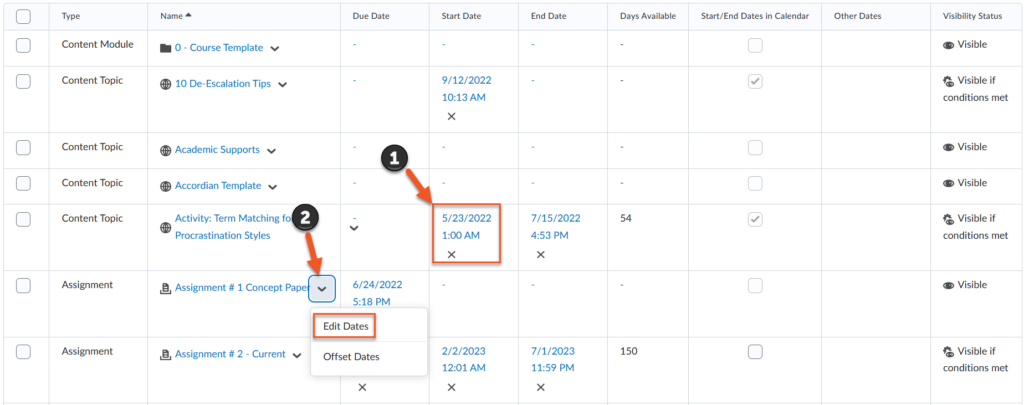
- Click on the item’s date under Due Date.
- Click on the dropdown arrow next to the item name and click Edit Dates.
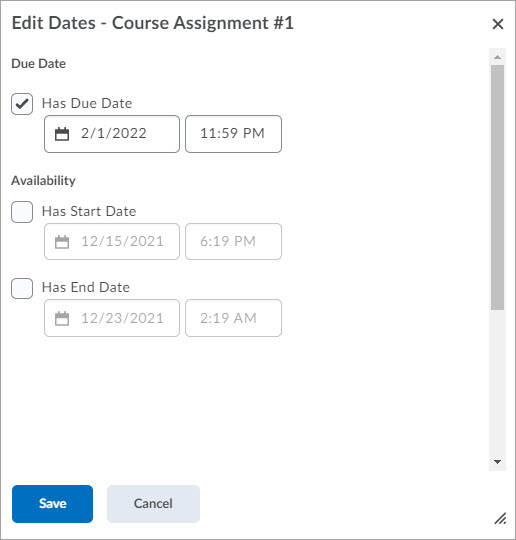
On the Edit Dates page, change the due date or the item’s availability by clicking the date and time boxes and then click Save.
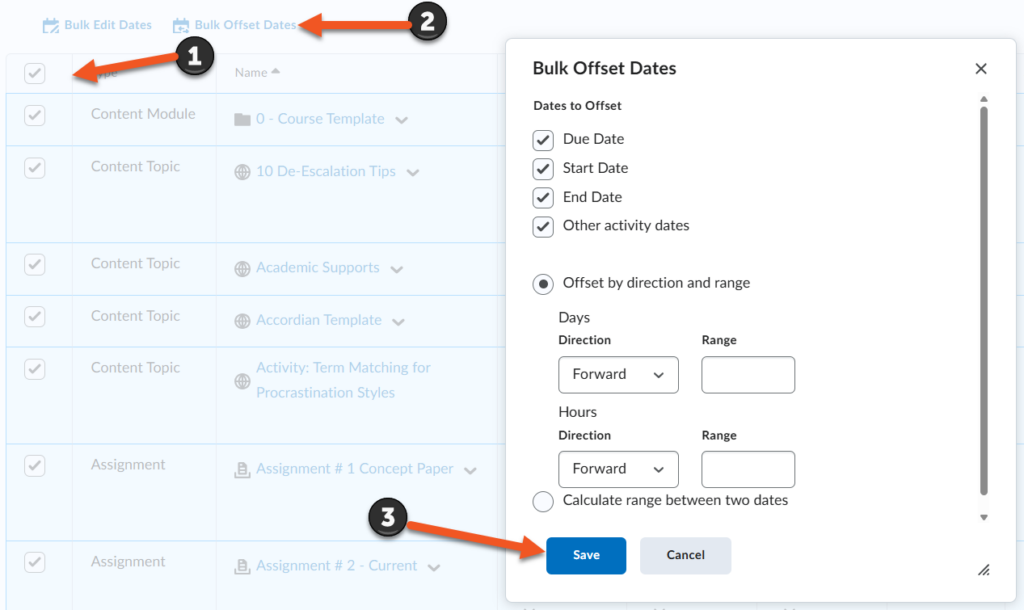
You can also manage dates in all course items simultaneously
- Click Bulk Edit Dates.
- Click Bulk Offset Dates.
- Make the appropriate offset selections (by days and range), then click Save.