
Start and End a Meeting
Join Via Brightspace
- Click on Tools > Kaltura Media Gallery > Start Meeting (students see Join Meeting)
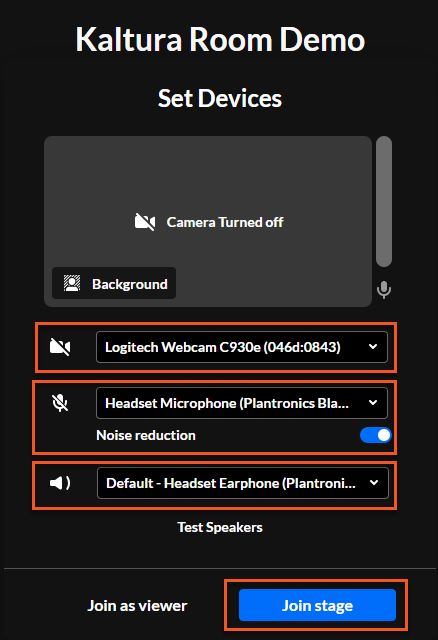
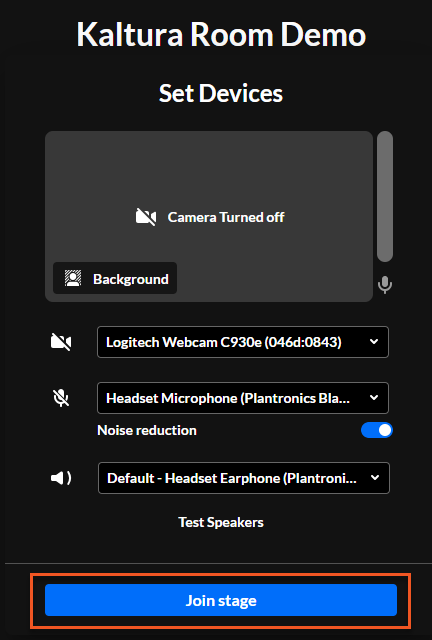
- Confirm your devices (camera, microphone, speakers) and choose your background (you can choose from preloaded scenes or upload one of NIC’s virtual backgrounds). Check all connections to ensure you can hear, see, etc.
- Click Join Stage. Moderators also have the option to Join as Viewer (if you Join as Viewer your devices will not be activated). Students just see Join Stage.
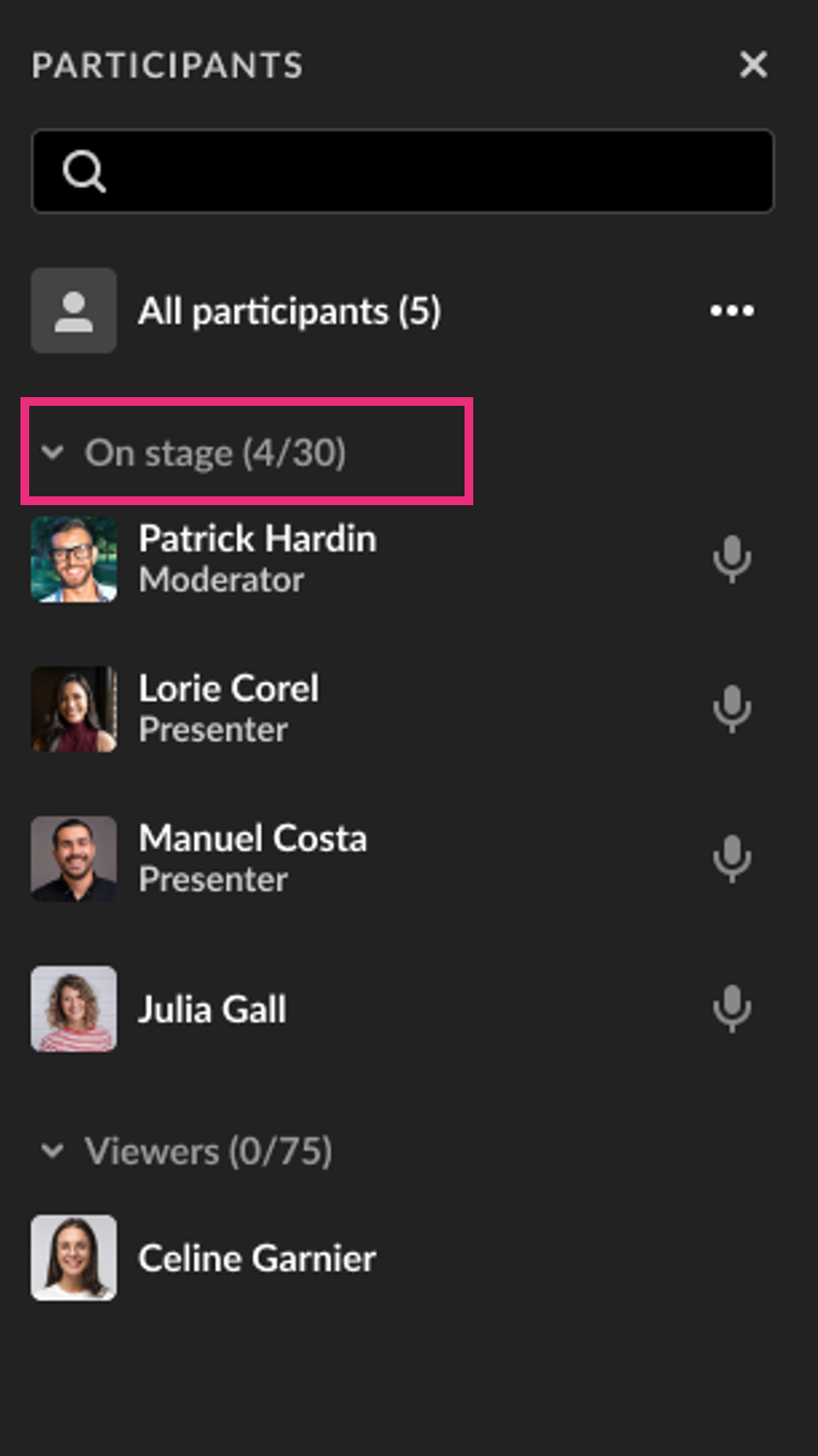
Who’s on stage?
The stage is the main screen in your room, displaying participant or content tiles.
- Up to 25 tiles can be shown at once.
- If there are more than 25 participants, only the most recent 25 will appear.
The number of people on the stage is monitored automatically, and the moderator can see this number in the participants list.
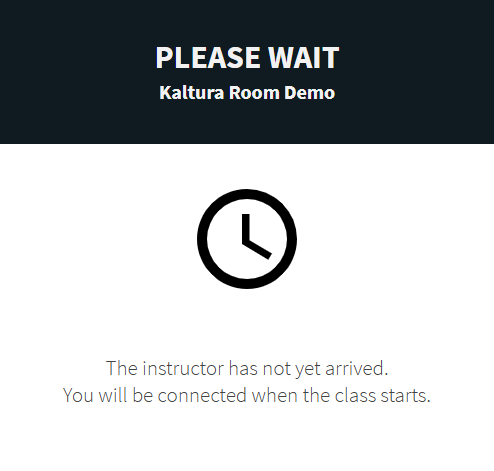
*NOTE: The moderator must start the meeting before others can join. If your students click Join Meeting prior to you starting the meeting, they will see this message.
Join via a Link
Send a link to students or guest by simply copying the URL from your browser’s address bar and pasting it into your Brightspace course or an email. Students or guests will be able to join the session directly by clicking the link.
What happens when the stage is full?
If the stage reaches maximum capacity, the last active speaker (the user that hasn’t spoken for the longest time) will be removed from the stage, making room for the new participant. The speaker who is removed can always go back on stage by clicking Join stage.


Can the moderator remove people from the stage?
Yes. Moderators can return a participant to viewer status by clicking on their name in the participants list and selecting Remove from stage or by hovering over their thumbnail and clicking the three dots menu, then selecting Remove from stage.

The user will get a notification that they are now a viewer.

For more detailed information visit the Stage Management in a Kaltura Room webpage on the Kaltura Knowledge Center site or view this PDF.
End or Leave a Session
At the lower right hand corner, click the End Session button (door icon).

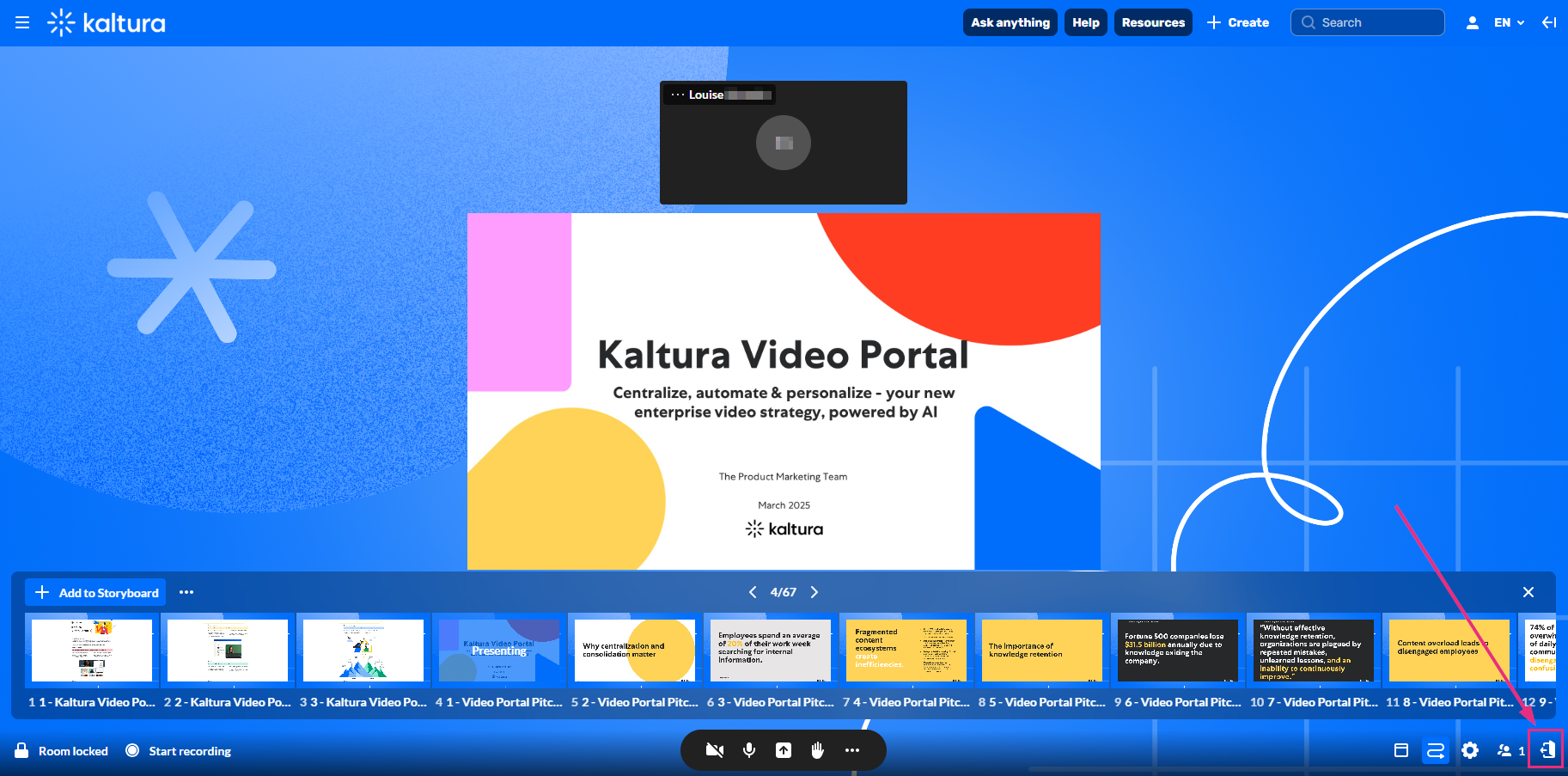
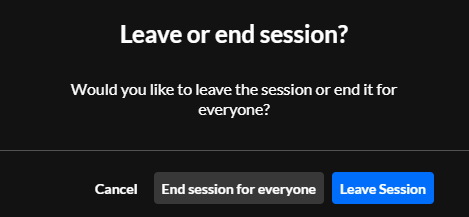
A confirmation message displays with two options:
- Click End session for everyone to end the session and remove everyone from the room.
- Click Leave session to leave the room without ending the session.
Moderators and hosts can also leave the session by closing the browser tab or window.
You can restart the session at any time by re-entering the room.
Time out
If the session host leaves the room, an invisible timer starts. If the host doesn’t return within 15 minutes, the session automatically ends for all participants. They’re redirected to a screen informing them that the session has ended.