Grade a Discussion
You can grade discussions inline using the Discussions tool or the Quick Eval tool, both tools allow you to evaluate individual posts, assign scores, and provide written or audio feedback. Grades can be linked directly to the gradebook, ensuring student scores and feedback are recorded and released efficiently.
See Create a Discussion Forum and Topic on the Create a Discussion page to learn more.
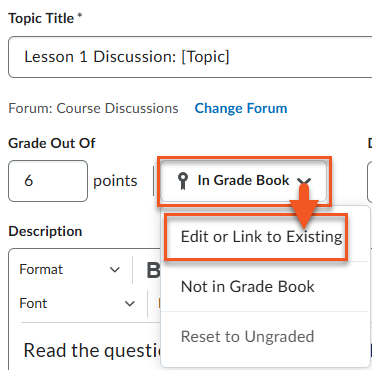
Use one of the two methods below to grade discussion posts.
The Discussions tool allows instructors to efficiently grade posts to Discussion Topics, provide detailed feedback, and automatically publish scores to the grade book.
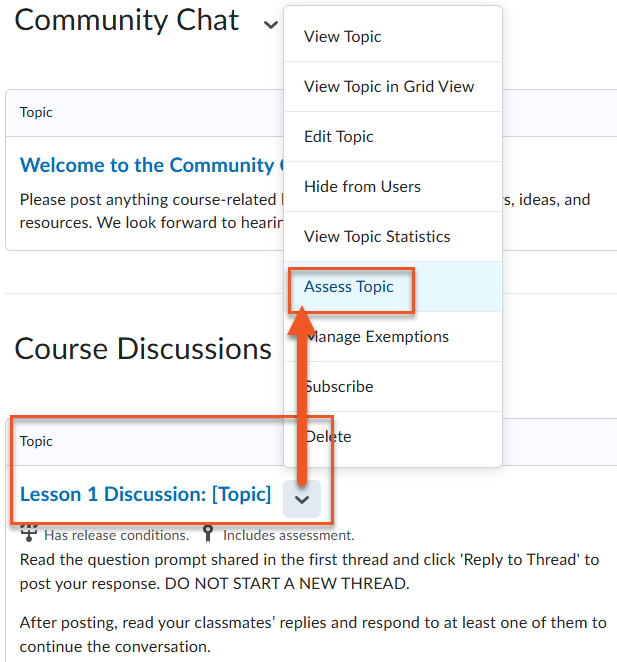
- Navigate to the Discussion Topic you want to grade, click the drop-down menu and select Assess Topic.
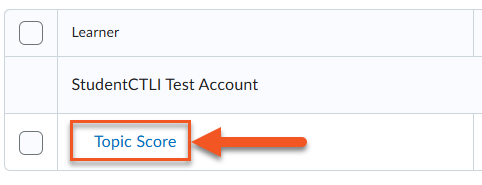
- Click on Topic Score to see the student’s post(s) that you want to grade.
- Grade the student’s post(s) and either Save Draft or Publish. *NOTE: If you choose Save Draft, you can publish all grades and feedback later, allowing all students to receive their results at the same time.
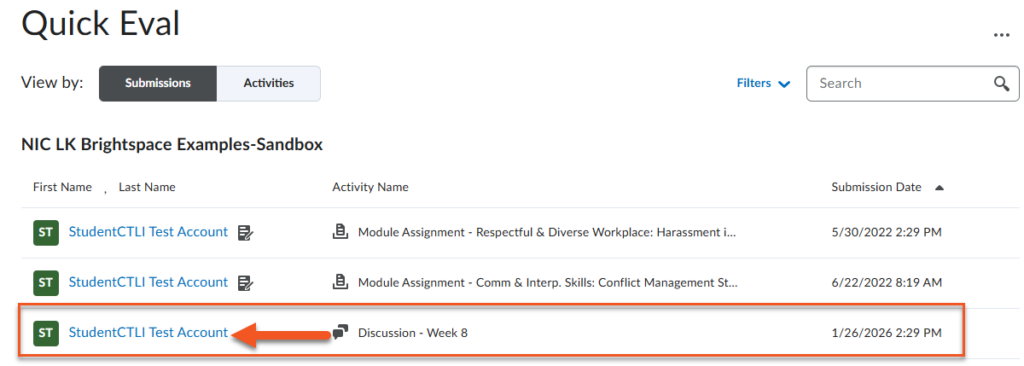
Brightspace includes two Quick Eval views: a course-level Quick Eval tool that displays all assessment submissions within a single course, and a Brightspace-wide Quick Eval view that aggregates submissions from all courses, allowing instructors to efficiently manage and prioritize grading across their full teaching load.
View of course-level Quick Eval. To grade the discussion post, simply click on the student’s name and continue to grade as shown in the accordion above.