
Manage Participants and Chats
Participant List
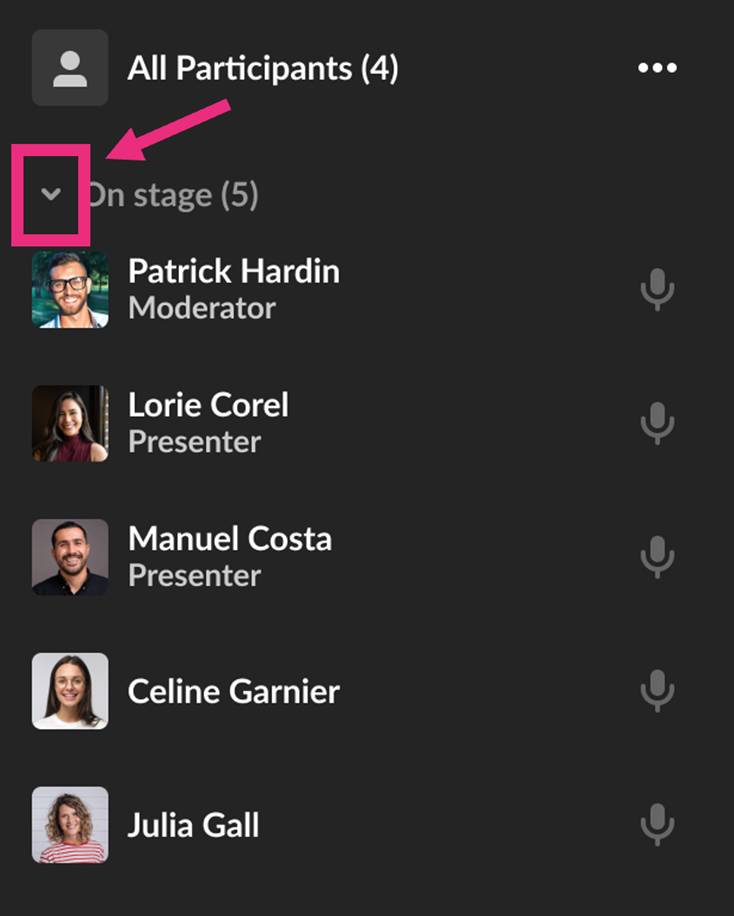
The Participants List shows all users in the room and lets moderators manage participant roles and actions.
Participants are grouped into:
- Raised hands
- On stage
- Viewers
Each section indicates the number of users in that section, as well as their names and a label for moderator or custom permissions. Icons for raised hand and microphone are displayed when relevant, to the right of each name.
Click the drop-down menu to the left of each section name to collapse the section. When there are many participants in a section, you will also see clickable options to See more and See less.
Manage Participants
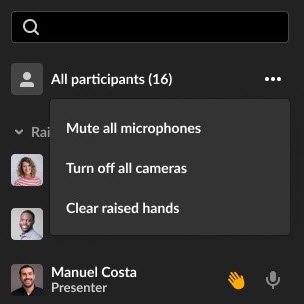
At the top of the list, you’ll see All participants with the count, and a three-dot menu.
This menu lets you:
- Mute all microphones (except yours)
- Turn off all cameras (except yours)
- Clear raised hands
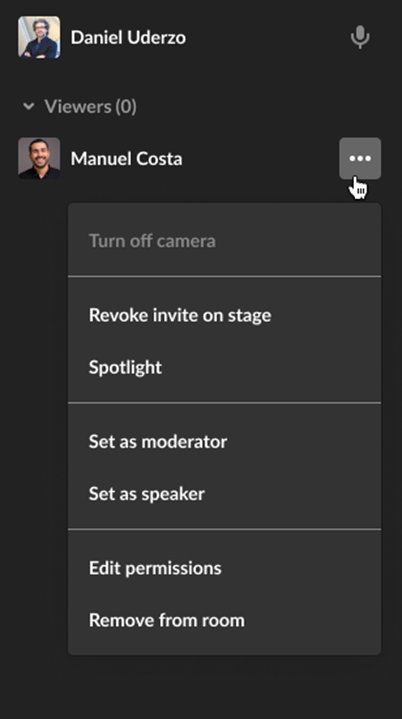
To manage a specific user, hover over their name in the list. Click the raised hand to lower it, click the microphone to mute/unmute it. There is a three-dot menu next to each name which offers more actions depending on your role.
- Invite to stage / Remove from stage — Invite to stage sends the user a ‘Set devices’ popup window where they can Decline invitation or Join stage. Until the participant responds to an invitation, you’ll have the option to Revoke invite on stage (even if another moderator initiated the invitation).
- Turn off camera - Turns off the participant’s camera.
- Remove from stage — Adds/removes the participant from the stage. That participant can always join the stage again if enabled by a moderator.
- Set as moderator - Sets that participant as a moderator.
- Set as speaker — Sets that participant as a speaker.
- Edit permissions — Edits the participant’s user permission. See User permissions for more information.
- Remove from room — Removes the user from the room.
NOTE: Clicking the three-dot menu next to your own name gives you options to Turn off camera if on stage, and Join stage/Remove from stage.
For more detailed information visit the Live stage management tools in Kaltura Rooms webpage on the Kaltura Knowledge Center site or view this PDF.
Manage Chats
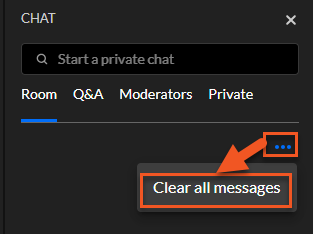
The Chat menu has the following tabs:
- Room — Manages group chat
- Q&A - Manages audience questions
- Moderators — Manages communication between Moderators
- Private — Manages 1:1 communication
Click on the three-dot menu to Clear all messages.
In the Chats, Moderators and attendees have different privileges.
- Moderators can pin messages, delete all messages, block users, and launch interaction tools.
- Attendees can write, like, and reply to messages, as well as delete their own messages.
For more detailed information visit the Live stage management tools in Kaltura Rooms webpage on the Kaltura Knowledge Center site or view this PDF.